Live chat
Shopify live chat that stays light and looks like your brand
Shoppers ask before they buy: does it run small, will it arrive by Friday, can I change my order. Hushdesk puts a fast, quiet chat button on your store and drops every conversation into the same inbox as your email, with the customer’s orders beside it.
- < 8 KB
- loader on every page, gzipped
- 4 styles
- then your colour, font and corners
- 1 tap
- to start, no account or form
- 1 inbox
- for chat and email together
Look and feel
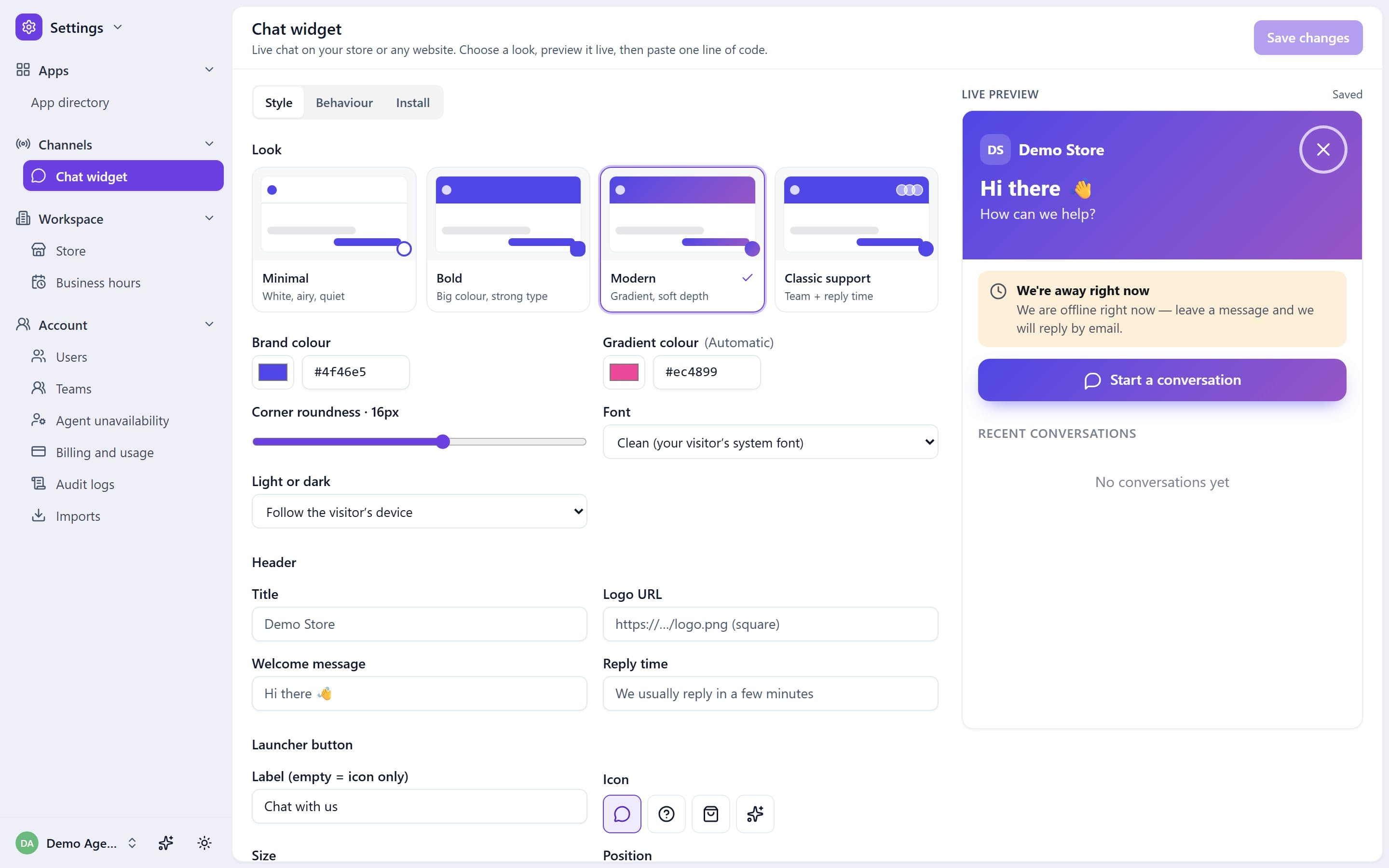
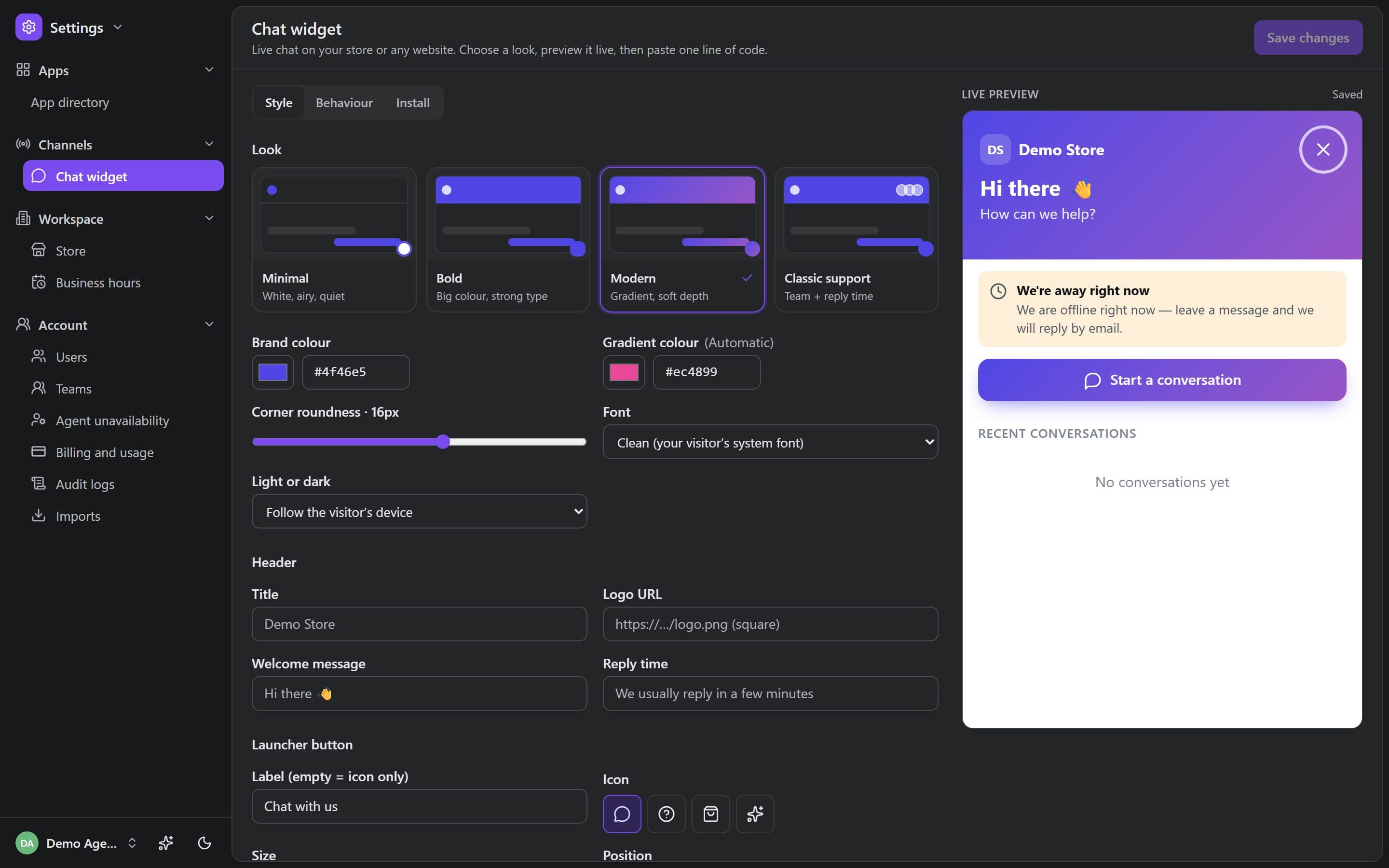
Four chat widget styles, tuned to your brand
Start from the preset closest to your store, then adjust the details. Every option below is in Settings, Chat widget, with a live preview on a sample store page.
Minimal
White, airy and quiet. Your colour shows only in the details.
Bold
Big colour and strong type, for brands that like to be seen.
Modern
A soft gradient between two colours, with gentle depth.
Classic support
Your team’s initials and the reply time in the header.
Then make it yours
- Brand colour, plus a second colour for the Modern gradient
- Corner roundness from square to soft (0–28 px)
- Font: system, rounded or serif, all system stacks, nothing downloaded
- Light, dark, or follow the shopper’s device
- Title, logo, welcome message and “we usually reply in…” line
- Launcher icon (chat, question mark, bag, sparkle), size and label
- Bottom right or bottom left, distance from the edges, and a lift on phones to clear sticky carts
Fonts are system stacks only, so choosing serif or rounded never adds a font download to your store.
What the shopper sees, and what your team sees
One conversation, two screens. Messages and typing travel both ways in real time, and the conversation is still there when the shopper comes back.
On your store
- A chat button that matches your store, in the corner you chose
- A conversation that starts with one tap, no account and no form unless you ask for one
- “Priya is typing…” while your agent writes, and the reply the moment it is sent
- An Away banner with your own message outside business hours
- A badge on the button for unread replies, and earlier chats under Recent conversations
- A one-to-five rating when the chat is closed
In your inbox
- Every chat in the same inbox as email, with the same views, tags and macros
- The shopper typing, live, before the message lands
- Guest or verified customer, depending on whether your site passed a signed identity
- Suggested macros and, with AI connected, a drafted reply
- Assignment, internal notes and undo send, exactly as on email tickets
No forced sign-in, no wall of fields
Every field between a shopper and their question loses a few of them. The pre-chat form is off by default, so the first tap opens a message box. If you want an email before the chat starts, switch the form on and make name and email optional or required.
When your site passes a signed identity for a logged-in customer, Hushdesk marks the chat as verified and joins it to that customer’s history. Without one, the chat stays a guest conversation and never opens anyone else’s past tickets.
Install
Add live chat to your Shopify theme in four steps
No app permissions to approve for chat alone, no theme rebuild. A one-click theme app embed is on the way; the snippet works on every theme today.
- 1
Pick a style
Open Settings, Chat widget. Choose a preset, set your colour and greeting, and watch the preview of a sample store update as you go.
- 2
Copy the snippet
The Install tab shows one line of code with your workspace and brand already filled in.
- 3
Paste it into your theme
In Shopify admin, open Online Store, Themes. On your live theme choose Edit code, open layout/theme.liquid and paste the line just above the closing body tag. Save.
- 4
Check it is live
Load your store. The Install tab lists the sites where the widget was last seen, so you know it is running without asking a friend to test it.
<script src="https://YOUR-HUSHDESK-ADDRESS/widget/v1/loader/helpdesk.js"
  data-workspace="YOUR-WORKSPACE-ID" data-brand="YOUR-BRAND-ID"
  data-api="https://YOUR-HUSHDESK-ADDRESS" defer></script>
Running WordPress, Wix, Squarespace or Webflow as well? Paste the same line into the site’s footer scripts. The how it works guide covers the email side, and integrations lists what else connects.
Away hours
Live chat after hours, without pretending to be online
Most small teams are not online at 11 pm, and shoppers forgive that as long as nobody pretends otherwise. The widget follows the business hours you set in Hushdesk, the same hours your response-time targets use, and switches its status from Online to Away when you close.
Outside those hours a banner shows the message you wrote, for example that the team is back at nine tomorrow. The shopper can still write; the chat lands in your inbox as a new conversation for the morning. Turn on the pre-chat form if you want an email address before they start.
Want to answer the routine questions at night anyway? The AI Agent page explains what it can handle and when it hands over.
Built to be fast, accessible and contained
The details that decide whether a chat widget helps or hurts a store. Each one is checked in the widget’s code, not just promised.
- Under 8 KB
- The loader every page downloads is held under 8 KB gzipped by a size check in our build. If it grows past that, the build fails.
- Loads late
- The chat app itself (held under 90 KB gzipped) loads when a shopper opens the chat, or in the browser’s idle time once the page has settled.
- No style clashes
- The button lives in a Shadow DOM and the chat in its own frame, so your theme’s CSS and the widget never fight.
- Keyboard first
- Focus moves into the chat when it opens and back to the button when it closes; Tab stays inside the chat and Esc closes it.
- Screen readers
- New messages are announced from a live message log, and the button has a visible focus ring.
- Calm motion
- Shoppers who ask their device for reduced motion get no slide or bounce animations.
- Light or dark
- The chat follows the shopper’s light or dark setting, or stays in the one you pick, so it never glows white on a dark theme.
- Your domains only
- The widget runs on your store’s domain and the sites you allow; anywhere else it politely refuses to start.
FAQ
Shopify live chat: questions and answers
What is Shopify live chat?
Shopify live chat is a chat button on your store that lets shoppers message your team while they browse. With Hushdesk, the button opens a small chat window in your brand’s style, and every conversation arrives in the same shared inbox as your support email, with the customer’s orders beside it.
Will a live chat widget slow down my Shopify store?
Hushdesk’s chat is built not to. The script every page loads stays under 8 KB gzipped, a limit our build enforces, and the larger chat app loads only when a shopper opens the chat or once the browser is idle. Your product pages render first; the chat waits its turn.
How do I add live chat to my Shopify theme?
Copy one line of code from Settings, Chat widget, Install, and paste it into your theme. In Shopify admin go to Online Store, Themes, Edit code, open layout/theme.liquid, paste the line just above the closing body tag and save. The Install tab then shows where the widget was seen.
Does Hushdesk live chat work outside Shopify?
Yes, the same one-line snippet works on any website. Paste it before the closing body tag, or into the custom code or footer scripts setting that WordPress, Wix, Squarespace and Webflow offer. Chats from every site you run arrive in the same Hushdesk inbox.
Do shoppers need to sign in or fill out a form to chat?
No, shoppers can start typing straight away. The pre-chat form is off by default; you can turn it on to ask for a name or email, each optional or required. If your site passes a signed identity for logged-in customers, their chats are joined to that customer’s history.
What happens when a shopper messages outside business hours?
The widget follows the business hours you set and shows Away instead of Online. An away banner shows the message you wrote, such as when the team is back, and the shopper can still write. Their chat waits in your inbox, and the pre-chat form can collect an email first.
Does the chat widget support dark mode?
Yes, the chat widget has a light theme, a dark theme and an automatic mode that follows the shopper’s device setting. You choose one in Settings, Chat widget, and the live preview shows it on a sample store page, so you can check your brand colour reads well in both before going live.
Can I match the chat widget to my brand?
Yes, start from one of four styles, Minimal, Bold, Modern or Classic support, then fine-tune it. You can set your colour, a gradient, corner roundness, font, logo, title, welcome message, reply-time line, launcher icon and size, side of the screen and light or dark mode, with a live preview.
Is the Hushdesk chat widget accessible?
It is built for keyboard and screen-reader users. Focus moves into the chat when it opens and returns to the button when it closes, Tab stays inside the chat, Esc closes it, new messages are announced from a live log, and shoppers who prefer reduced motion get no animations.
Can customers rate their live chat?
Yes, when a chat is closed the widget asks the shopper to rate it from one to five, with an optional comment. One rating is kept per ticket. The scores feed the satisfaction numbers in Hushdesk analytics, so you can see how chat compares with email over time.
Is live chat better than a contact form?
Live chat suits questions a shopper needs answered before buying, while a contact form suits slower requests. With chat, the shopper sees you typing and gets the answer on the page they are on. In Hushdesk both end up in one inbox, so you can offer chat without running a second tool.
Can I move the chat button away from a sticky cart bar on mobile?
Yes, the widget settings include a lift for phones. Set how many pixels to raise the chat button on small screens, up to 200, so it clears a cookie bar or a sticky add-to-cart button. You can also choose the bottom left or bottom right corner and the distance from each edge.
Live chat is on every plan, including the free one. Compare plans on the pricing page, or read how proactive chat will start conversations for you.
Put a fast chat button on your store today
Free to start, unlimited seats, no card needed. Paste one line and answer your first chat from the inbox.